

Mojo Helpdesk Product Updates: Autumn 2026
Autumn's updates cover Metadot Apps, asset management, draft autosave, scheduled reports, and security and sign-in improvements.
1. Metadot Apps are included in every Mojo plan
Mojo Helpdesk includes Metadot Apps: Stackr for project management, BookMe for appointment scheduling, and Changelog for sharing updates with a team or customers. Together they cover the work around the help desk, from planning projects to booking appointments to announcing what changed.
Metadot Apps are included in all Mojo plans. Learn more.
2. Asset Portal upgrades
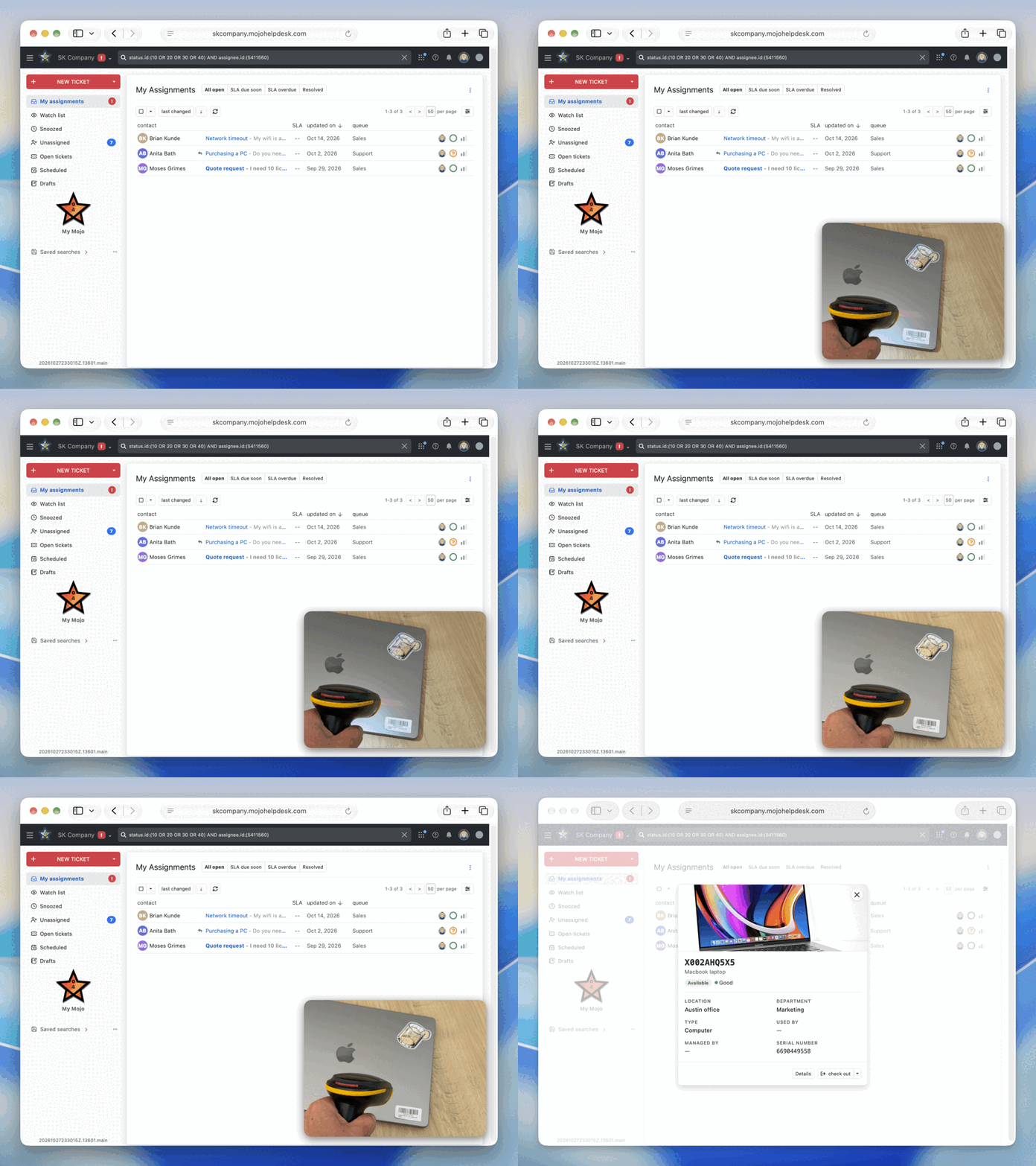
Asset tags can be scanned from anywhere in the agent portal using a handheld barcode scanner. Scanning a barcode or QR code opens quick actions to view the asset or check it in or out, without having to navigate to the Assets section.
The asset details page has been redesigned with a cleaner layout, an asset picture, and easier access to key information such as the name, tag, and status.
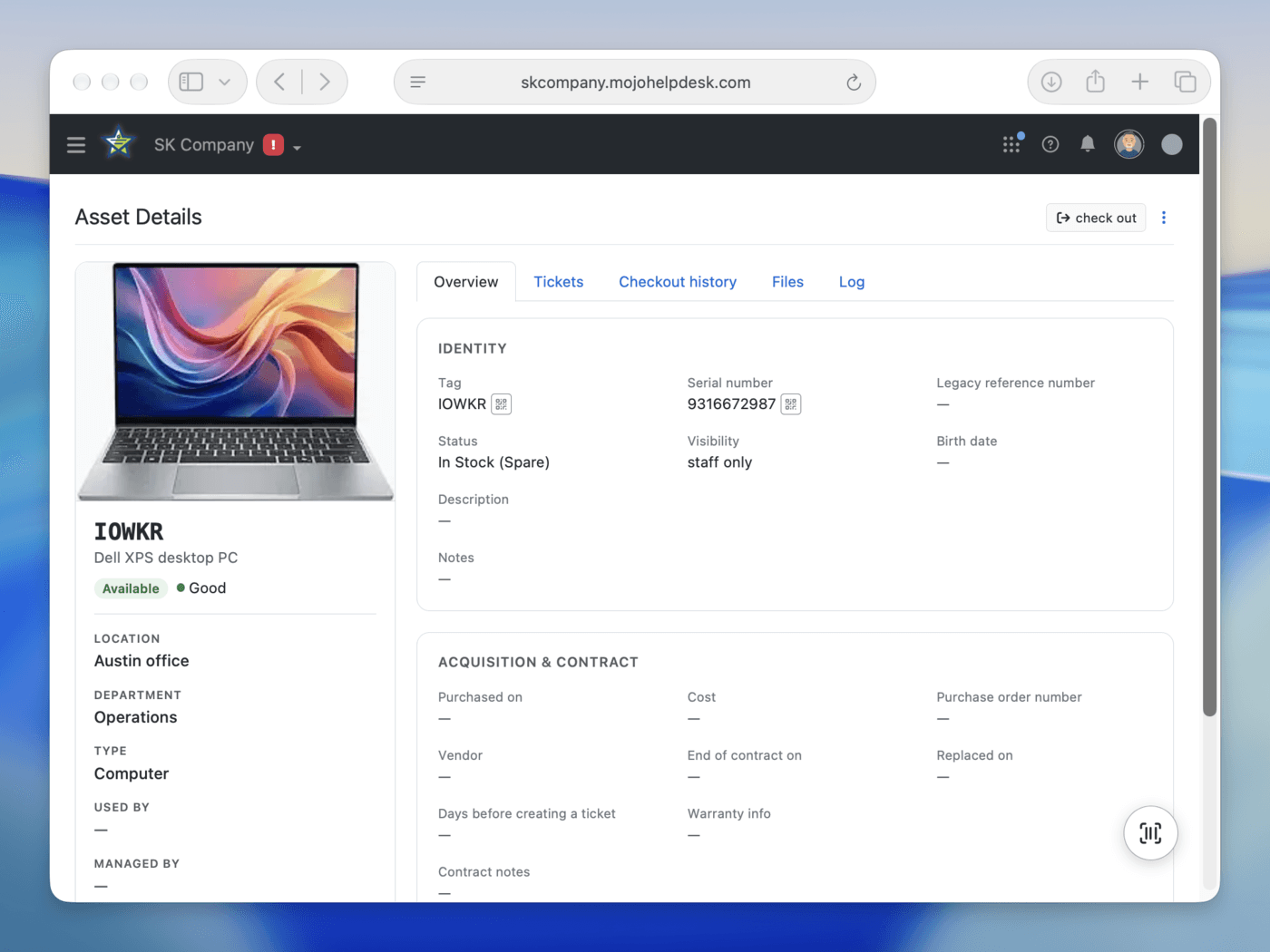
Admins can also create custom asset fields to track additional information, such as a device's operating system or mobile carrier. These fields can be configured in the Asset Portal settings.
Finally, files can be attached to assets, including warranties, receipts, and condition photos.
3. Draft autosave for replies
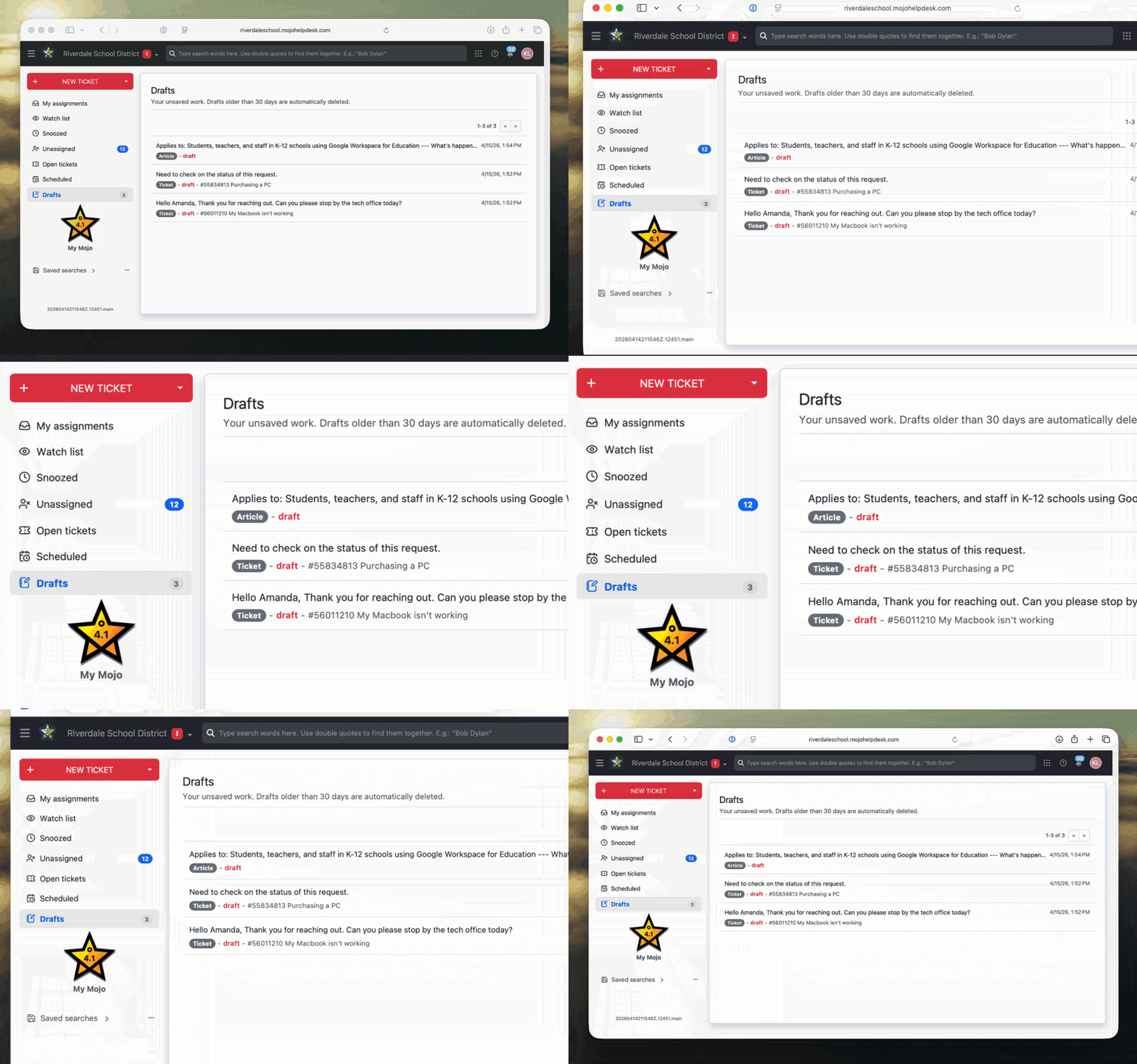
Ticket replies are saved automatically as agents write. Drafts are stored in a central location, where agents can resume unfinished replies at any time. Drafts older than 30 days are deleted automatically. Autosave is also available for articles in the knowledge base.
4. Weekly digest and scheduled reports on every plan
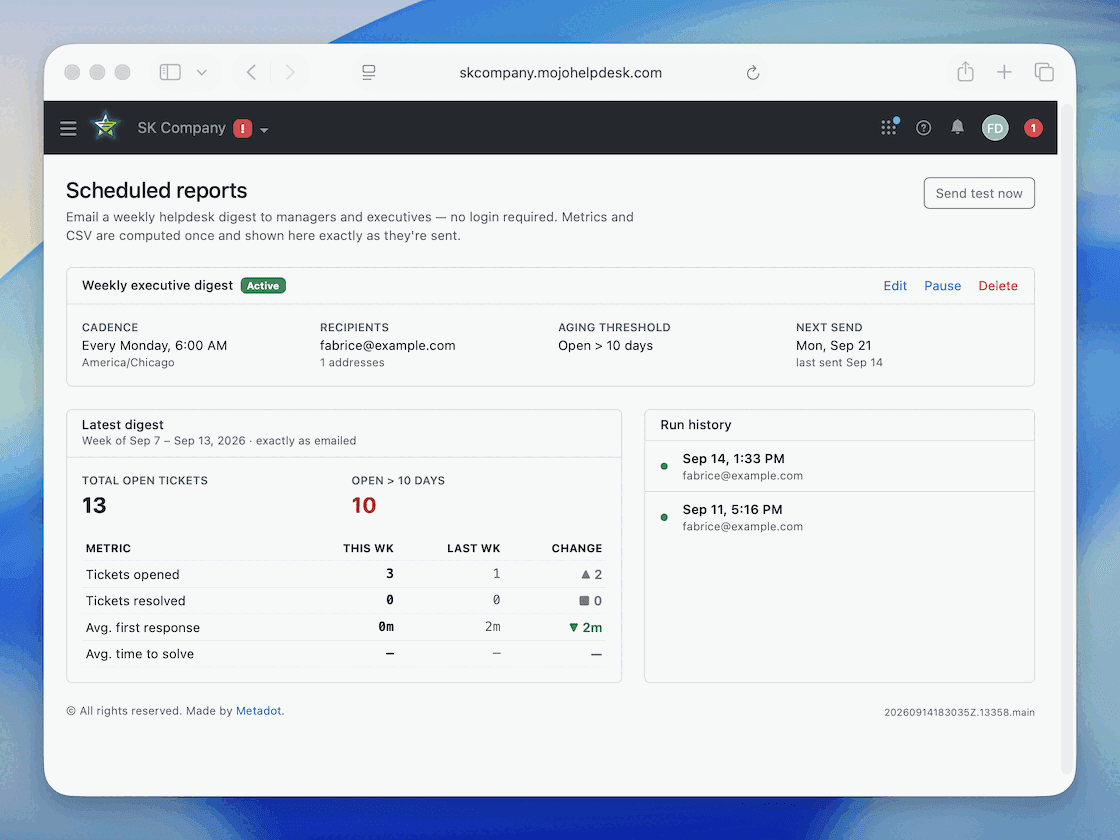
A weekly summary of help desk activity can be scheduled and emailed automatically, giving a regular view of team performance without opening the dashboard. Scheduled report delivery is available on all plans.
5. Staff-only single sign-on
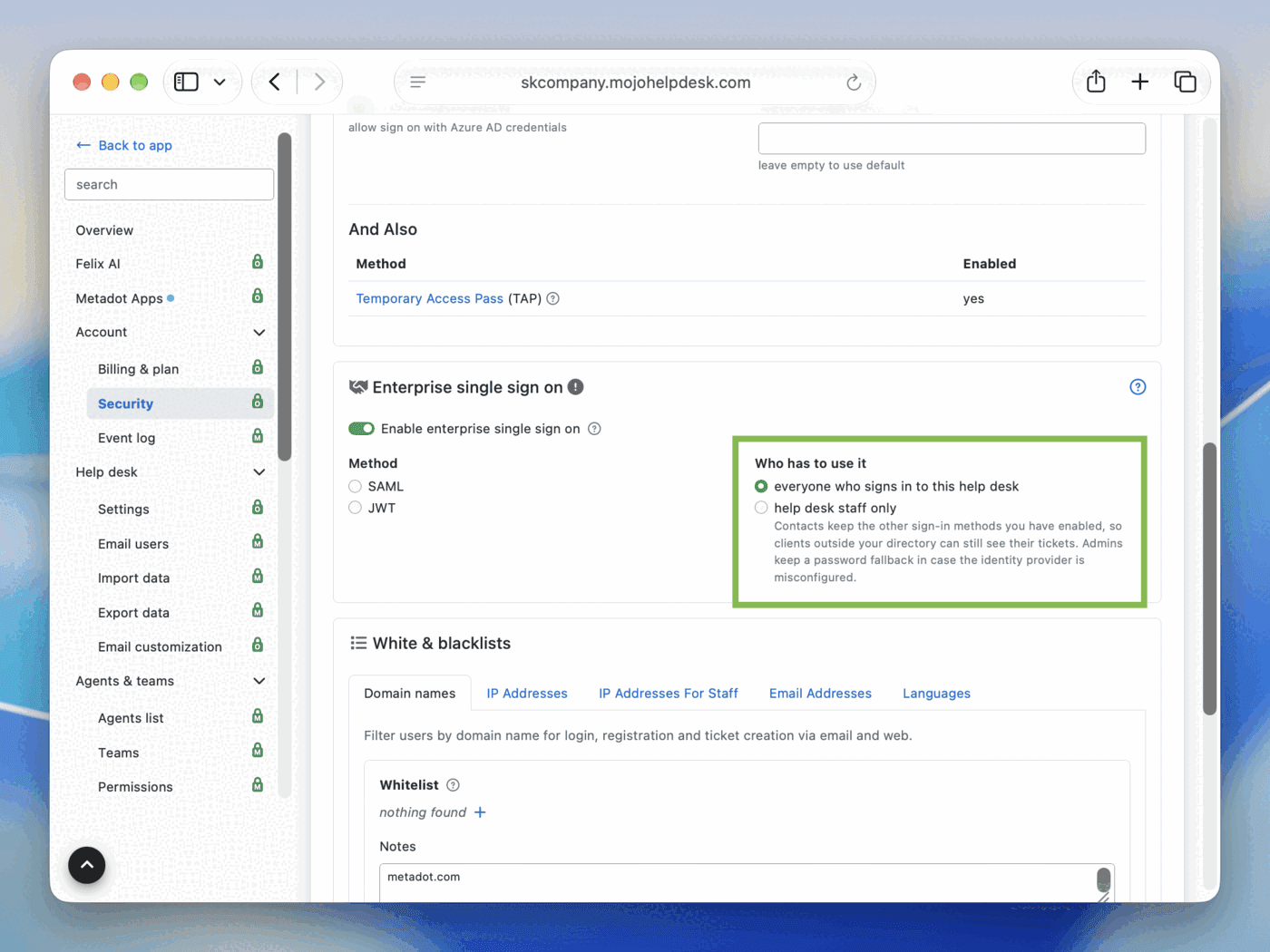
Admins can require staff to sign in with single sign-on (SSO) while customers keep using their existing login method. This helps when customers do not have company accounts. The option is off by default and an admin must enable it.
6. Read-only API keys with usage monitoring
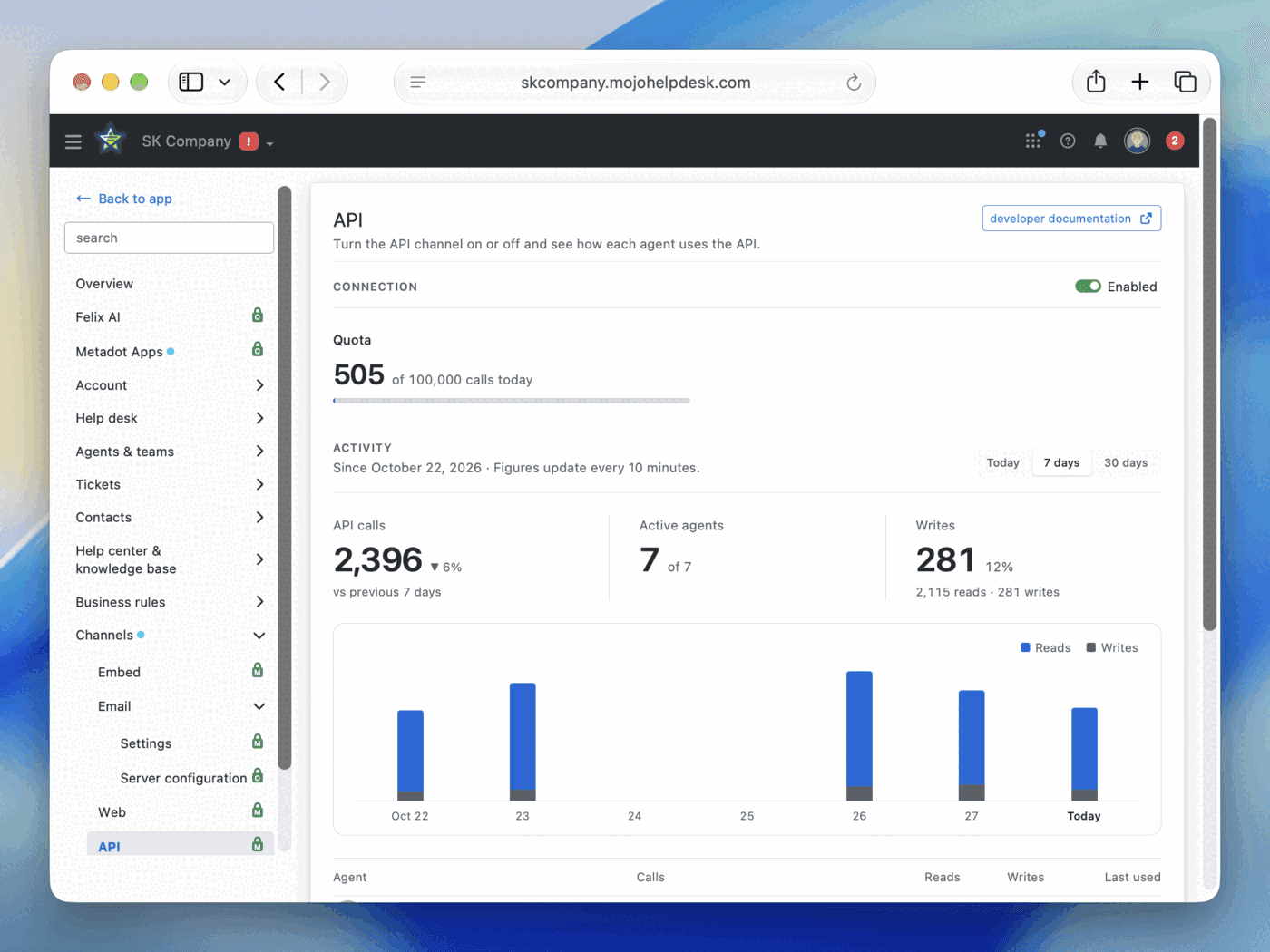
A read-only API key can be generated from the Security tab of the agent profile, for integrations that only need to read data. Every key supports an optional expiry date, and keys can be rotated or revoked at any time. Admins can also monitor API metrics and usage, including the daily quota, reads and writes over time, and calls for each agent.
7. Microsoft 365 mailbox integration
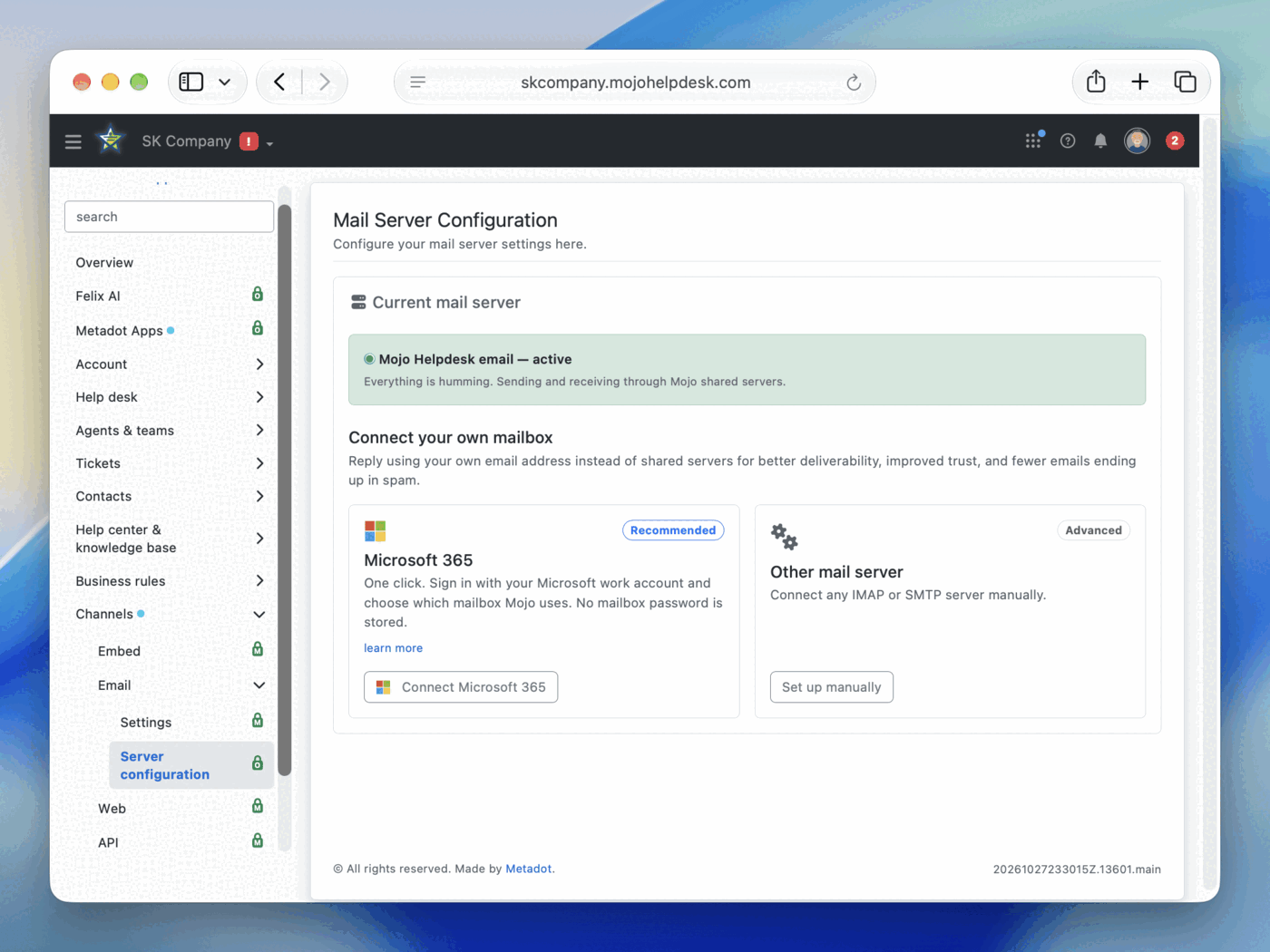
A new integration connects a Microsoft 365 mailbox directly to Mojo Helpdesk. An admin signs in with Microsoft in one click, and email received in that mailbox becomes tickets. Replies are sent through the mailbox itself, which helps prevent emails from being sent to spam.
8. Variables in canned responses
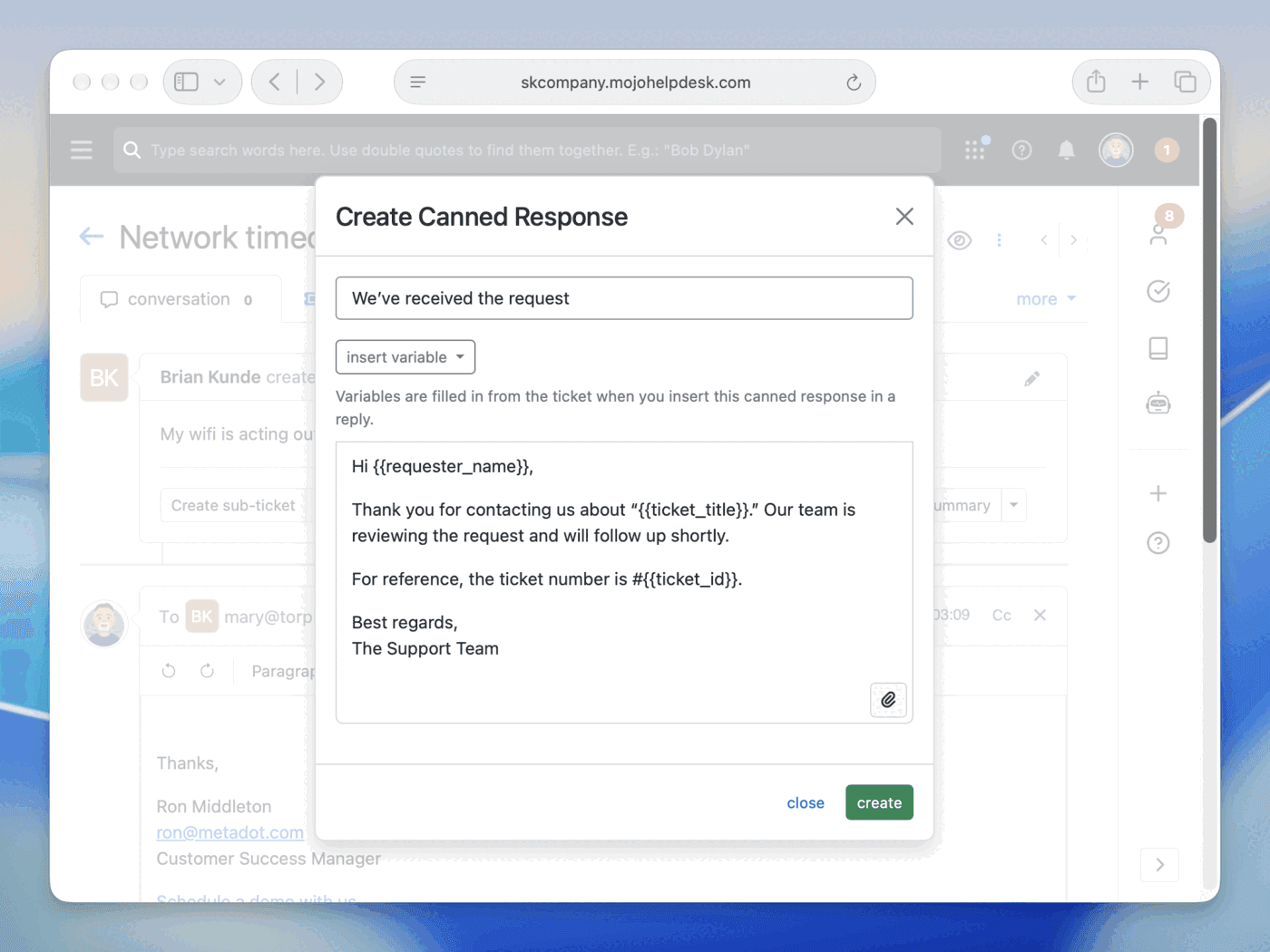
Canned responses support variables such as the requester's name, the ticket title, or the ticket ID. Mojo fills in these details when the response is inserted into a reply, which saves time.
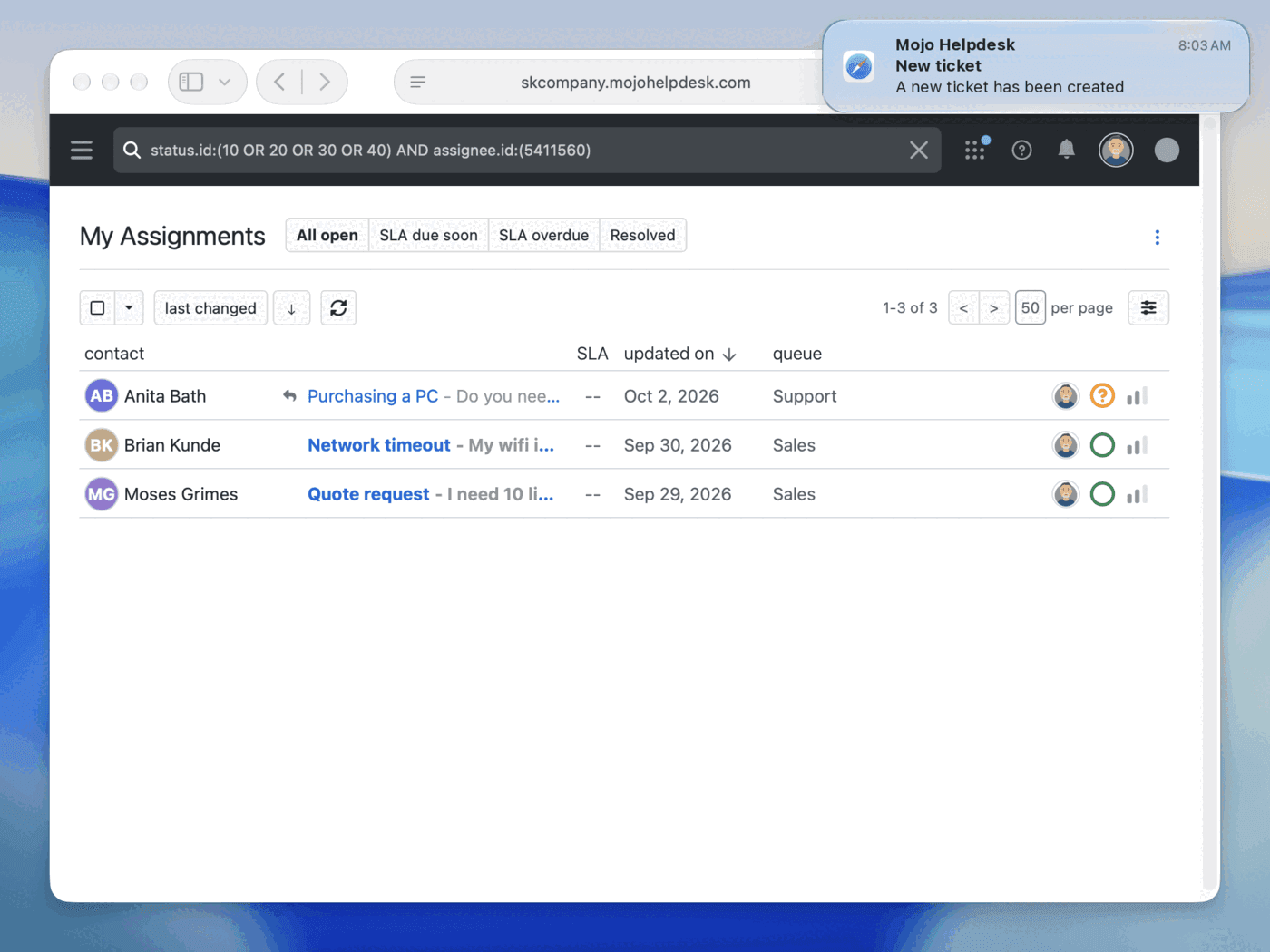
9. Desktop and sound alerts
Agents can receive desktop notifications and sound alerts when new updates arrive, without watching the Mojo tab. Alerts are managed in notification settings.
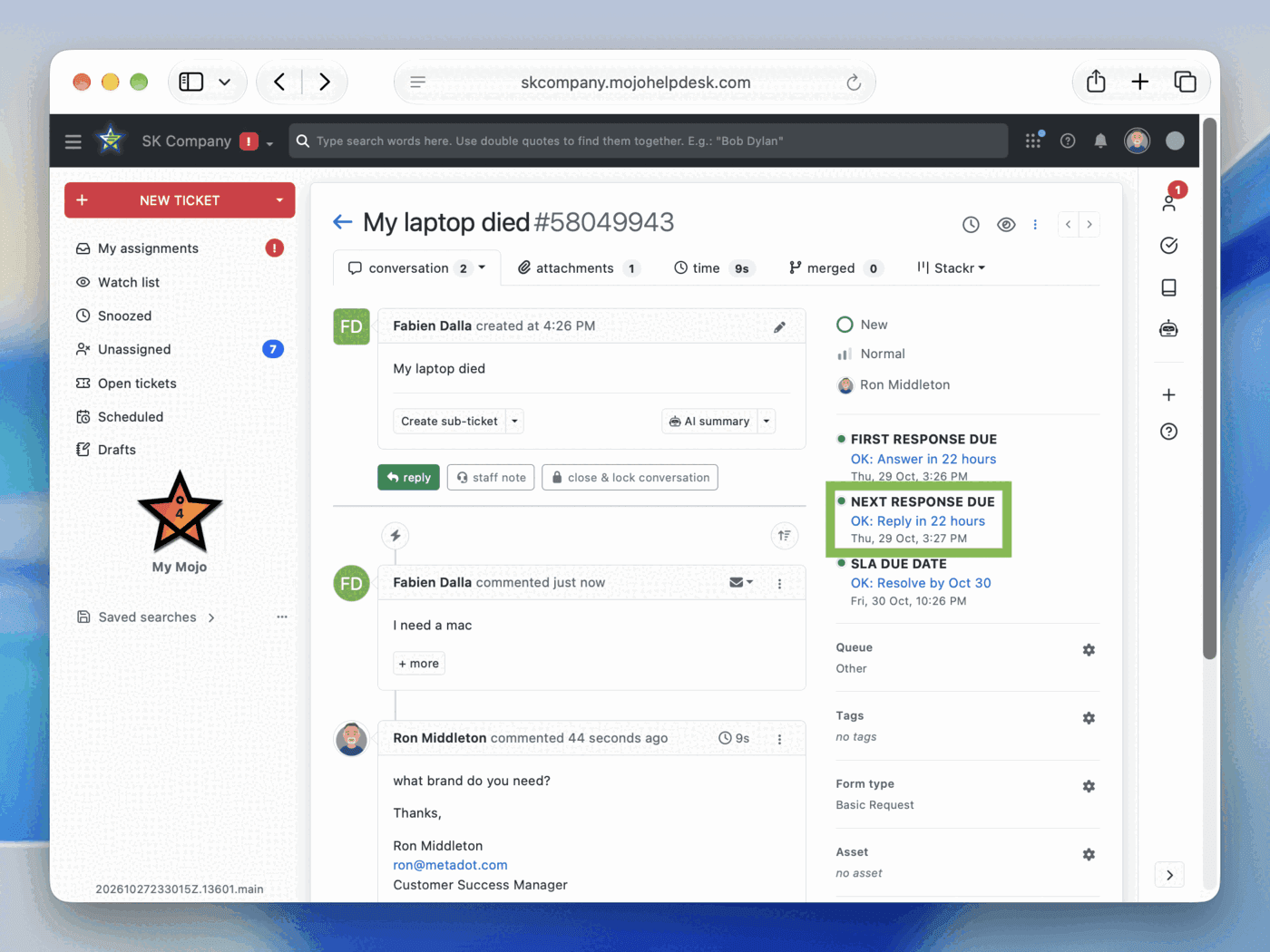
10. Response SLAs on every customer reply
Response SLAs restart whenever a customer replies to a ticket, not only when the ticket is created. The ticket shows a next response due time below the first response due time, so agents know when a follow-up message needs an answer. This option must be turned on in the SLA settings.
And more improvements
Tickets
- Tickets can be marked as unread
- Shift-click selects a range of tickets for bulk actions
- Custom field values can be updated for multiple tickets at once
- Ticket lists include a sortable "snoozed until" column
- Merging tickets can carry over the closed ticket's description
- Tickets can be exported using multiple filters
- Managers can exclude a ticket rating from the team score
- Strikethrough is available in the editor
Knowledge base and help center
- Knowledge base topics support custom icons
- Articles can be arranged in any order
- Tables can be added to articles
- Topics and subtopics can be created from the article page
- The help center subtitle can be customized
- The help center top bar color can be customized
- Images can include descriptions for screen readers
Administration
- Ticket queues can be archived instead of deleted
- Ticket forms can be displayed in a custom order
- Notification subscriptions can be locked for agents
- Users can be suspended or reactivated in bulk with a CSV import
- Imports automatically map columns for assets, users, and tickets
- Admins can control who receives Mojo news and product announcements
Thank you to all the customers who shared their feedback. The Mojo Customer Success team is available to discuss any suggestions or blockers in your workflow. Reach out to
success@help.mojohelpdesk.com.